 EDII
EDII
EDII Transport
The bus is
on the map.
No box in the bus.
The driver's own phone is the tracker. Sharing starts when the driver taps Start Trip and stops when they tap End Trip, and never runs outside those two taps. The office watches the whole fleet on one map; each parent sees only their own child's bus.
Bundled into EDII. Transport is not an add-on, not a second vendor and not a hardware purchase. It is a group in the sidebar of the school operating system your office already signs in to every day.
01 · The problem
It is 7:42, and the office phone is ringing.
Four things go wrong with school transport, and none of them are solved by a map on a screen nobody trusts.
“Where is the bus?”
A parent is at the gate and the office has no better answer than they do. Somebody rings the driver, who is driving.
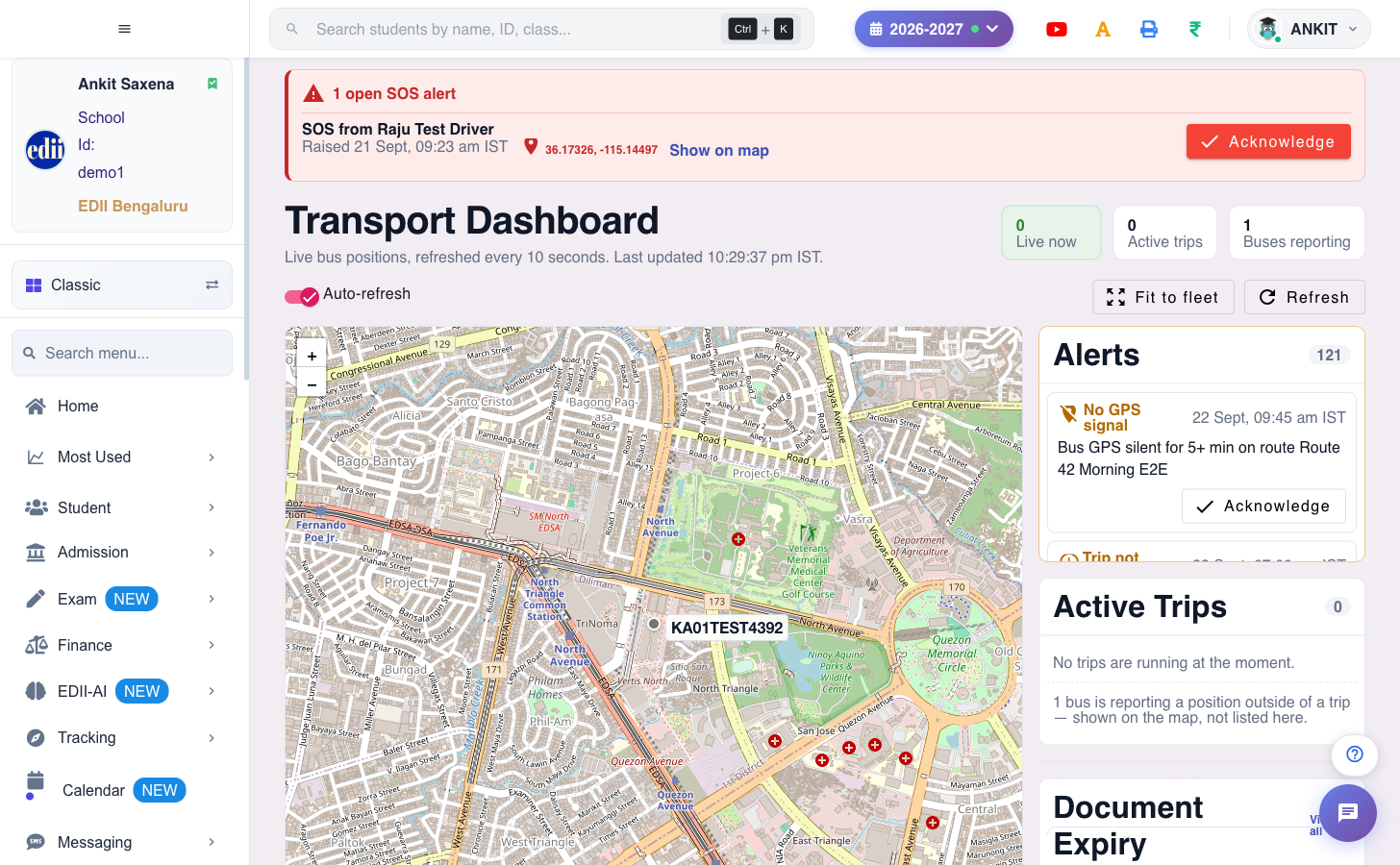
Keep the Transport Dashboard open. Every bus that is reporting sits on one map, labelled with its registration number, refreshed every 10 seconds.
“The GPS box died in March.”
A tracker bolted into the bus is one more thing to own, power and chase a third party about on the day it stops reporting.
EDII fits nothing to the bus. The Vehicles screen does have a GPS Device ID field, but it is there only for schools that already own hardware trackers. If you do not, it stays blank.
“Who was actually on the bus?”
A child is missing from the afternoon run and nobody can say whether they boarded, or were marked absent, or were collected from the gate.
The driver marks each child picked up, dropped off or absent on the phone. It becomes a Boarding Attendance record, filterable by class, section and date range, and printable.
“The bus fee list stopped matching the riders.”
Children join a route mid-session and are never billed. Others pay a bus fee for a stop they stopped using in July.
Bus Fee Reconciliation lists exactly that: seats with no bus fee, bus fees with no seat, and stops on the fee that differ from the stop the child boards at.
02 · In one line
EDII Transport turns the driver's phone into the bus's GPS, and puts the whole fleet on one live map inside the EDII you already use.
No device is fitted to the bus. No second login, no second vendor, and no second copy of your student list. The routes read your classes and sections, the rider list is checked against your own bus fee ledger, and everything the driver taps on the bus lands in the same records the office already works from.
See the office side03 · How it works
Three steps, and the bus is on the map.
Once the routes are drawn there is nothing to set up again each morning. The driver taps twice a trip, the office keeps the dashboard open while the buses are out, and the records write themselves.
Draw the routes, then fill the seats
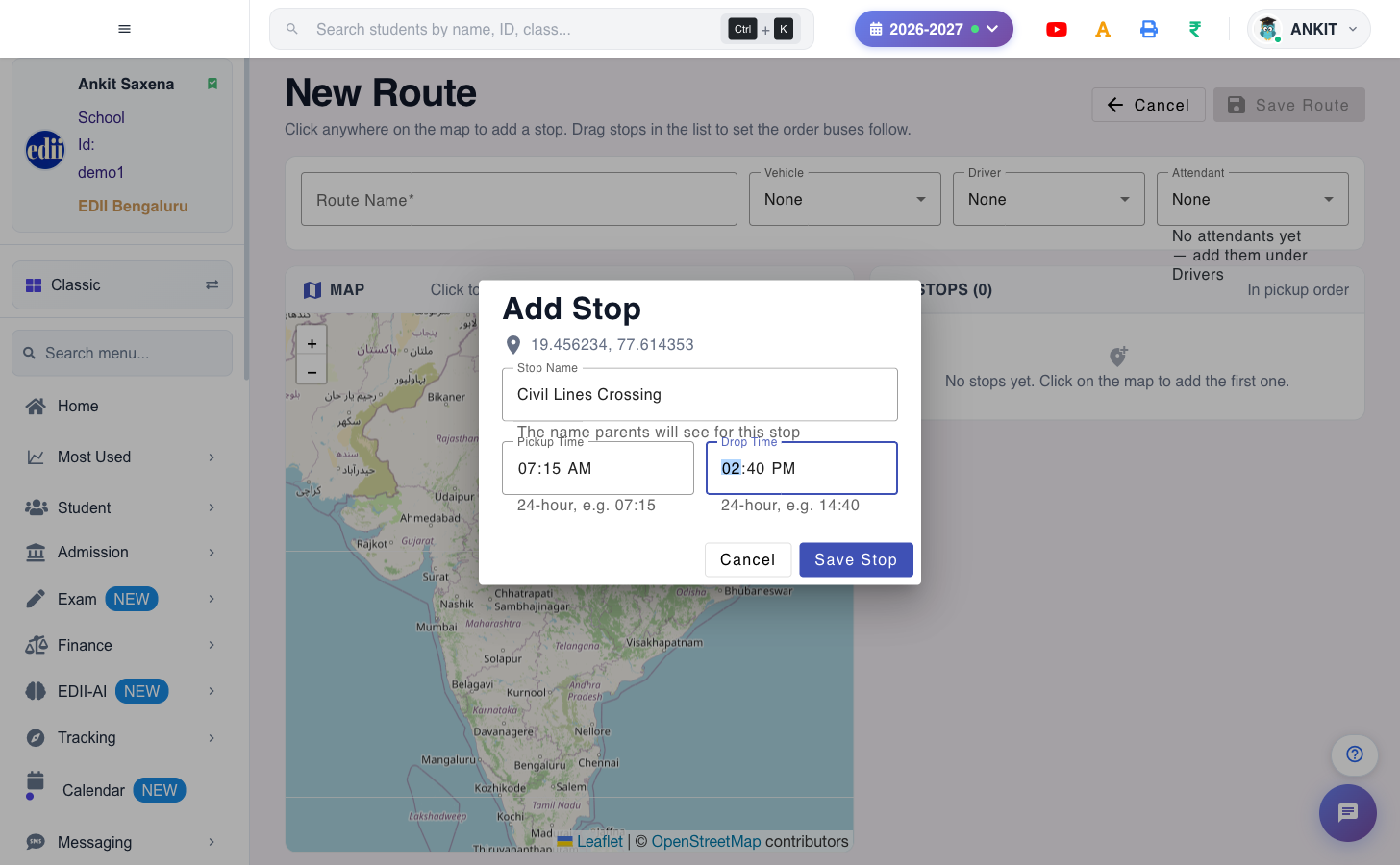
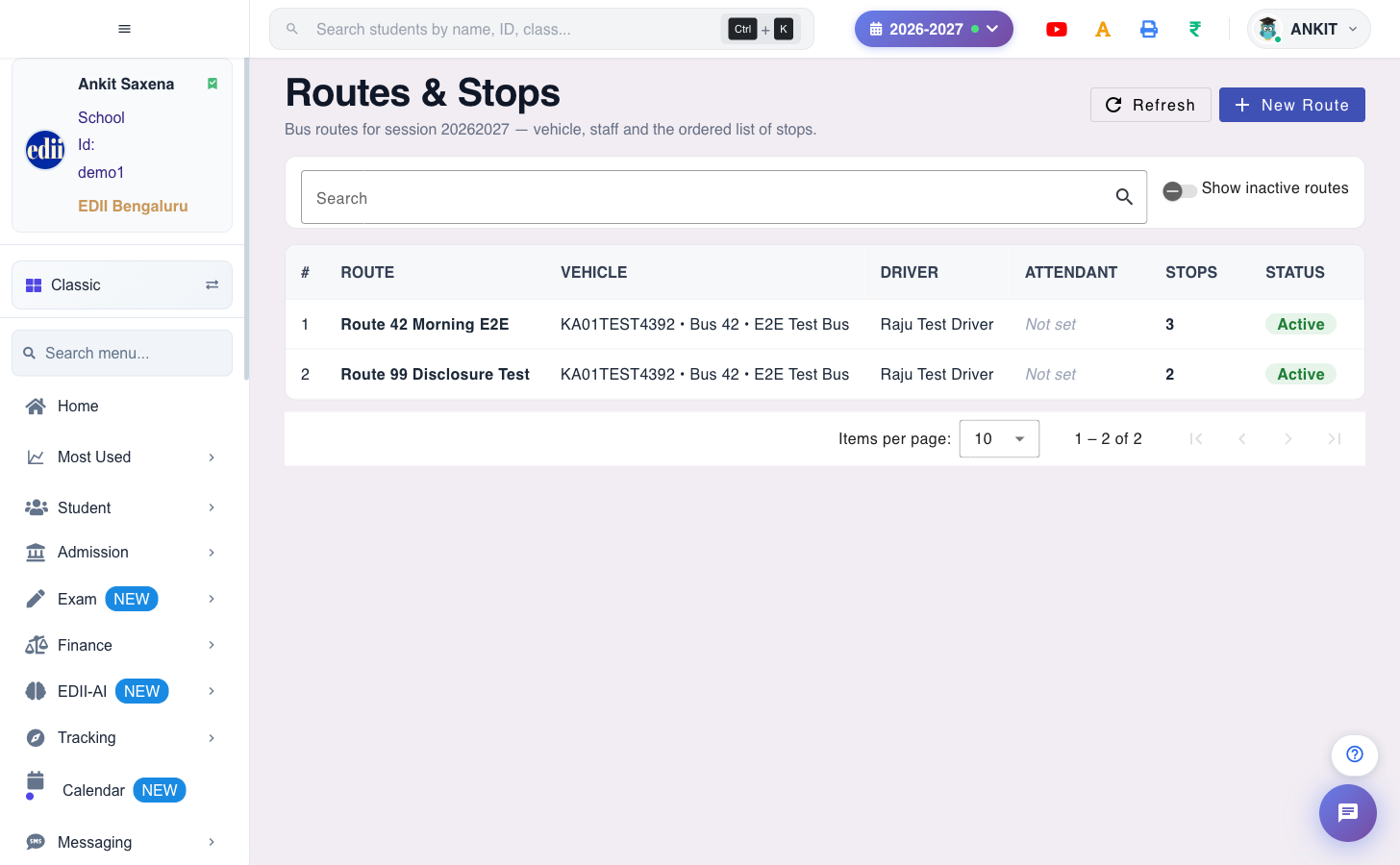
On Routes & Stops you click the map to drop each stop, name it, give it a pickup and a drop time and drag the list into visiting order. Then on Student Assignments you put a whole class on a route and stop in one pass.
The driver taps Start Trip
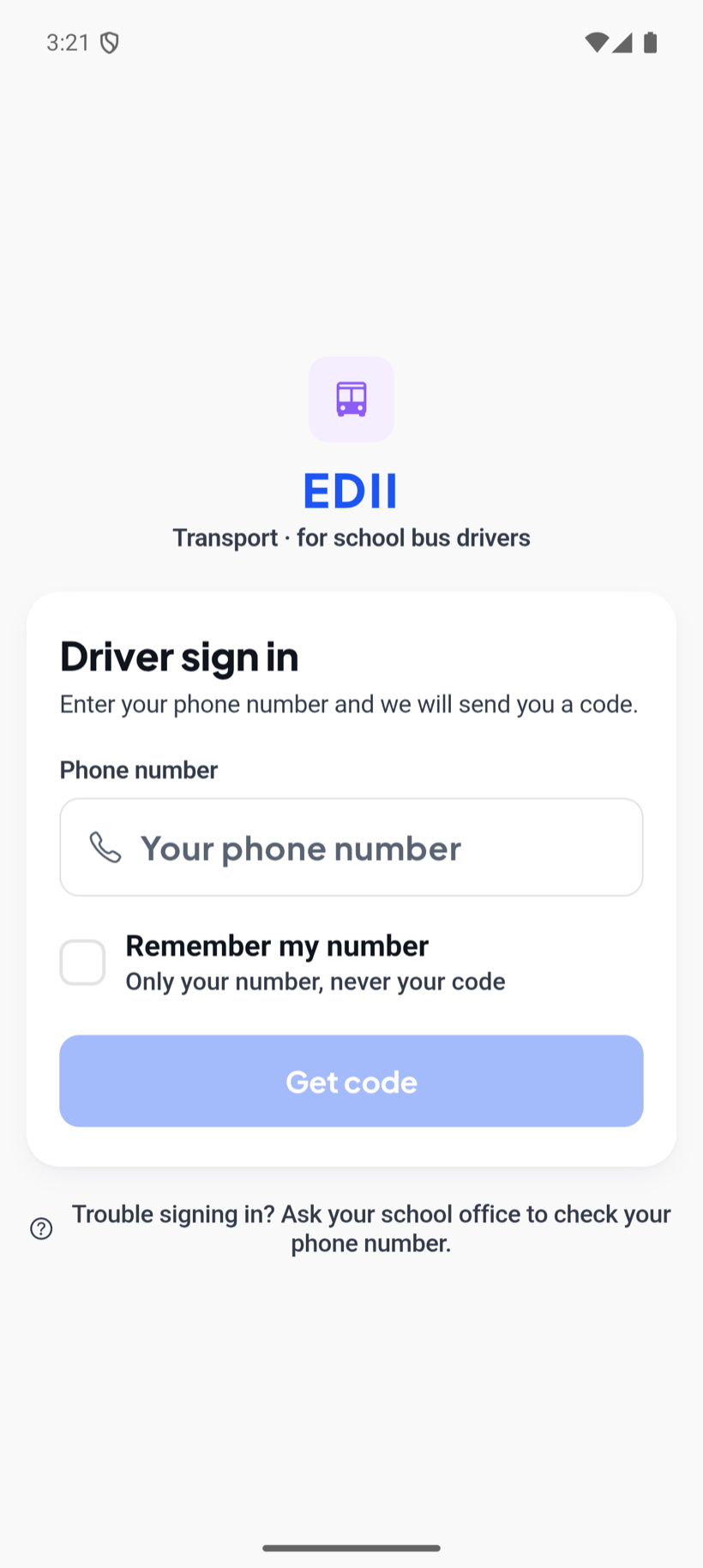
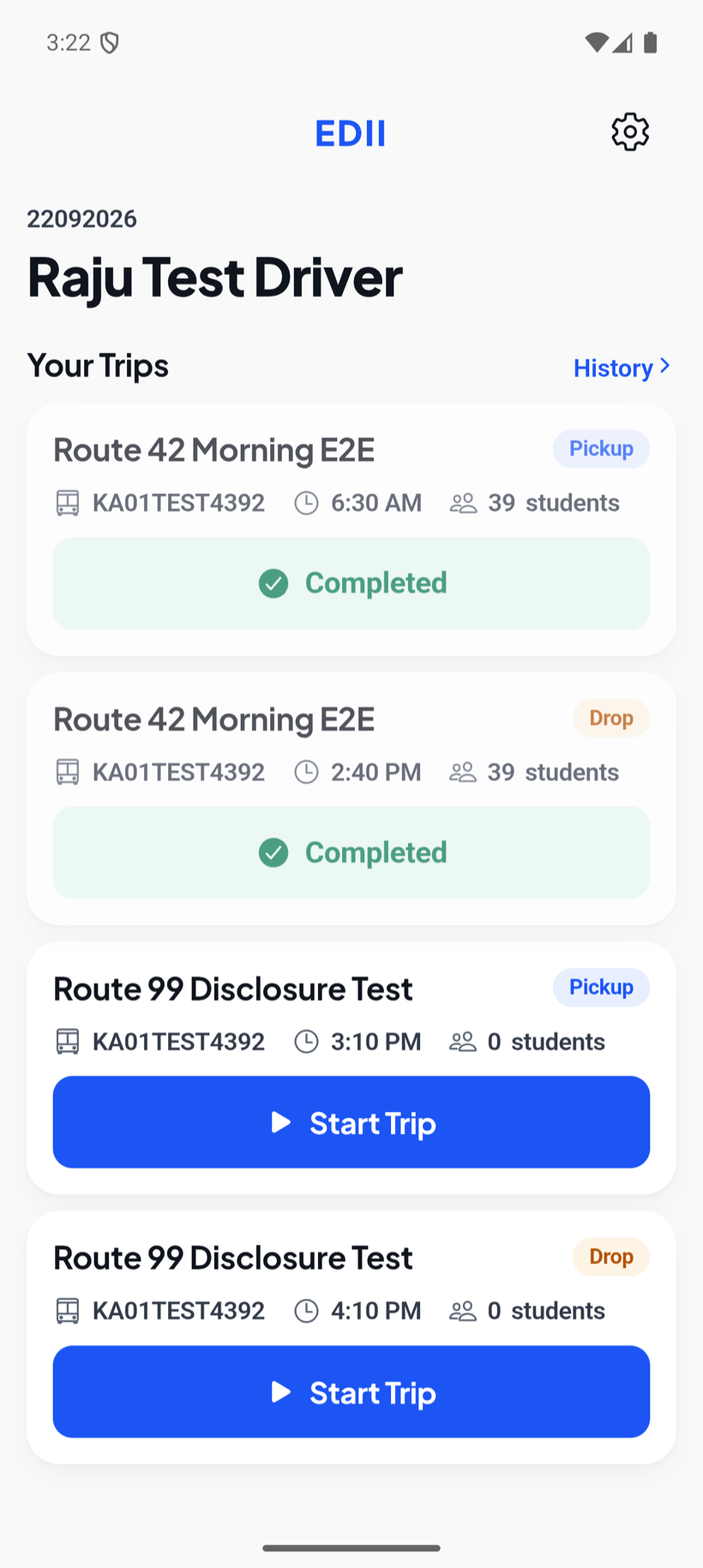
The driver signs in with the mobile number the school registered, sees the day's trips — a Pickup and a Drop for each route — and taps Start Trip. From that moment the phone is sharing the bus's position, and a notification says so the whole time.
Parents see their own bus
In the EDII parent app the screen is called School Bus. It refreshes every 15 seconds while the trip runs and shows the bus, their stop, how many stops away it is and an arrival estimate — and it goes quiet again when the trip ends.
04 · For the office
One map for the fleet. One place to fix what is wrong.
Transport is a group in the EDII sidebar, under Operations. Same login, same session, same students. These are the screens your office already has access to.
Every screenshot on this page is from a demo school — your routes, buses and children will be different. Tap or click a screenshot to open it full size.
One map, every bus
Three counters across the top — Live now, Active trips, Buses reporting — and the map below them.
- Auto-refresh every 10 seconds, with the last update time stamped in IST.
- Markers carry the bus registration number; Fit to fleet zooms out to show them all.
- Select a trip and the map draws its planned stops and the path actually driven — so you can replay where a bus really went.
- Panels for Alerts, Active Trips, Students on this trip, Recent Trips and Document Expiry. Every alert has an Acknowledge button.
- A bus reporting outside a trip is admitted, not hidden: “N bus(es) reporting a position outside of a trip — shown on the map, not listed here.”
Draw the route, drop the stops
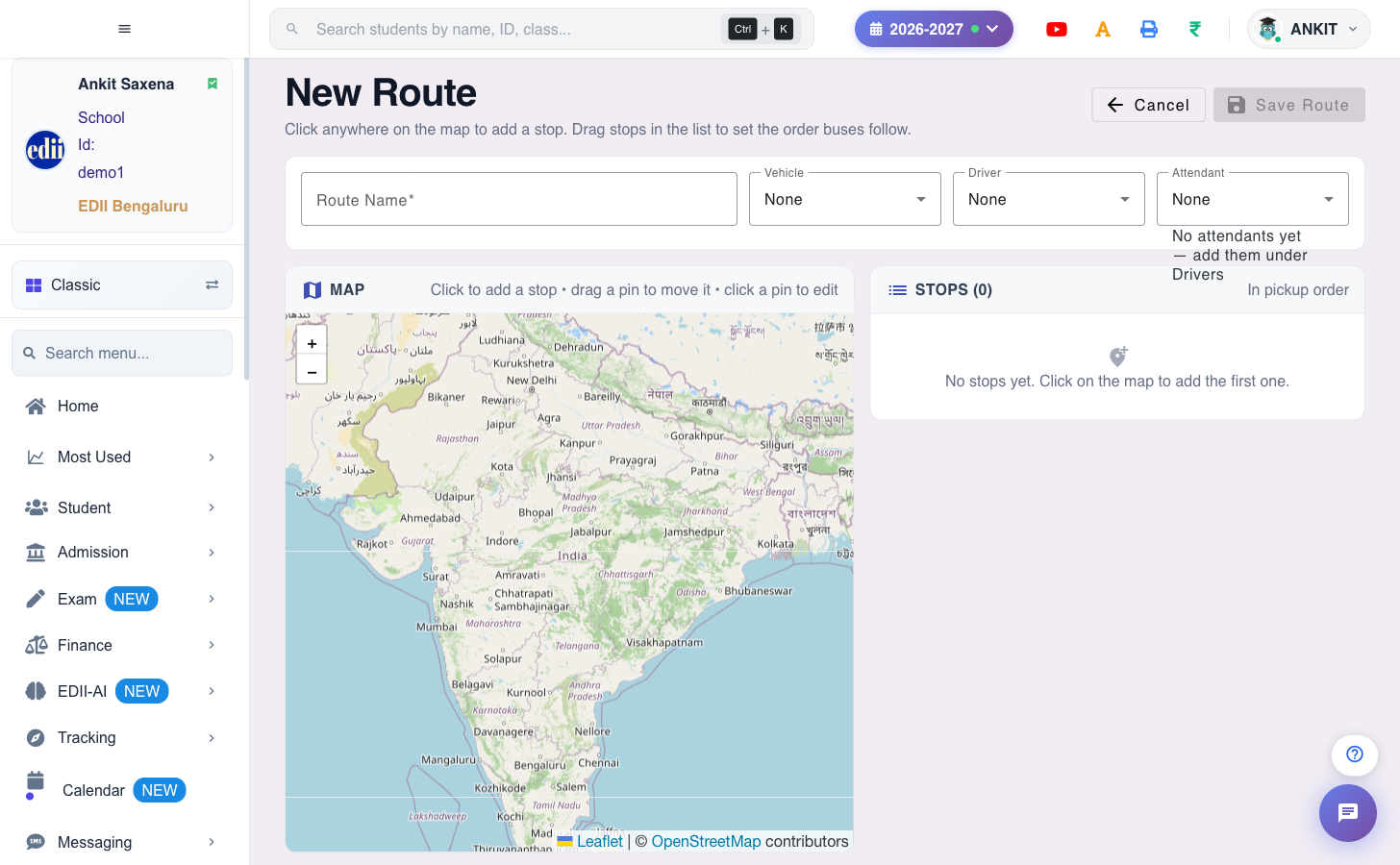
Stops live inside a route — there is no separate global stop list to keep in step.
- The map card says it plainly: click to add a stop • drag a pin to move it • click a pin to edit.
- The Add Stop dialog takes a stop name, and an optional pickup and drop time on the 24-hour clock.
- Rows below carry a drag handle. That order is the pickup order — and the drop run is the same list reversed.
- Stop order drives the driver's next stop, the parent's “N stops away” and the arrival estimate, so it is worth zooming in when you place a pin.
- Maps are OpenStreetMap through Leaflet. No Google Maps key, nothing to bill.
A whole class in one pass
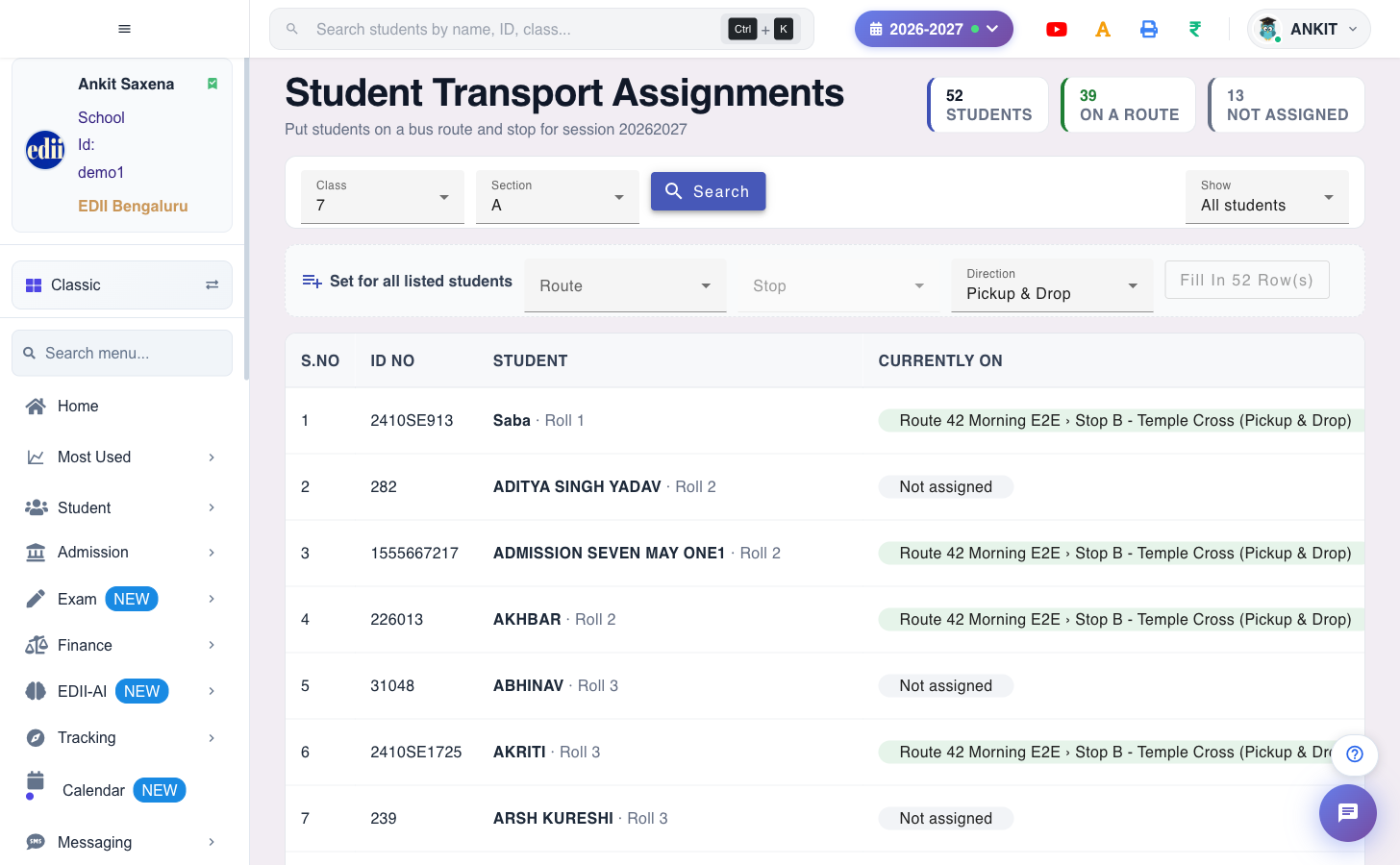
Student Assignments opens empty on purpose. You pick a class and a section and press Search, and the counters tell you where you stand: Students, On a Route, Not Assigned.
- Set the Show filter to “Not assigned yet”, so you cannot disturb children already placed.
- Pick the route, stop and direction most of them share, then press Fill In N Row(s) — it respects the filters you have on.
- Fix the handful of exceptions row by row. Every row has an undo.
- Direction matters: a child who comes by bus but goes home by car must be Pickup only, or they show as missing on every drop run.
- Setting a whole class in one pass turns an afternoon of clicking into about a minute.
05 · For the driver
Three taps, and nothing to read while moving.
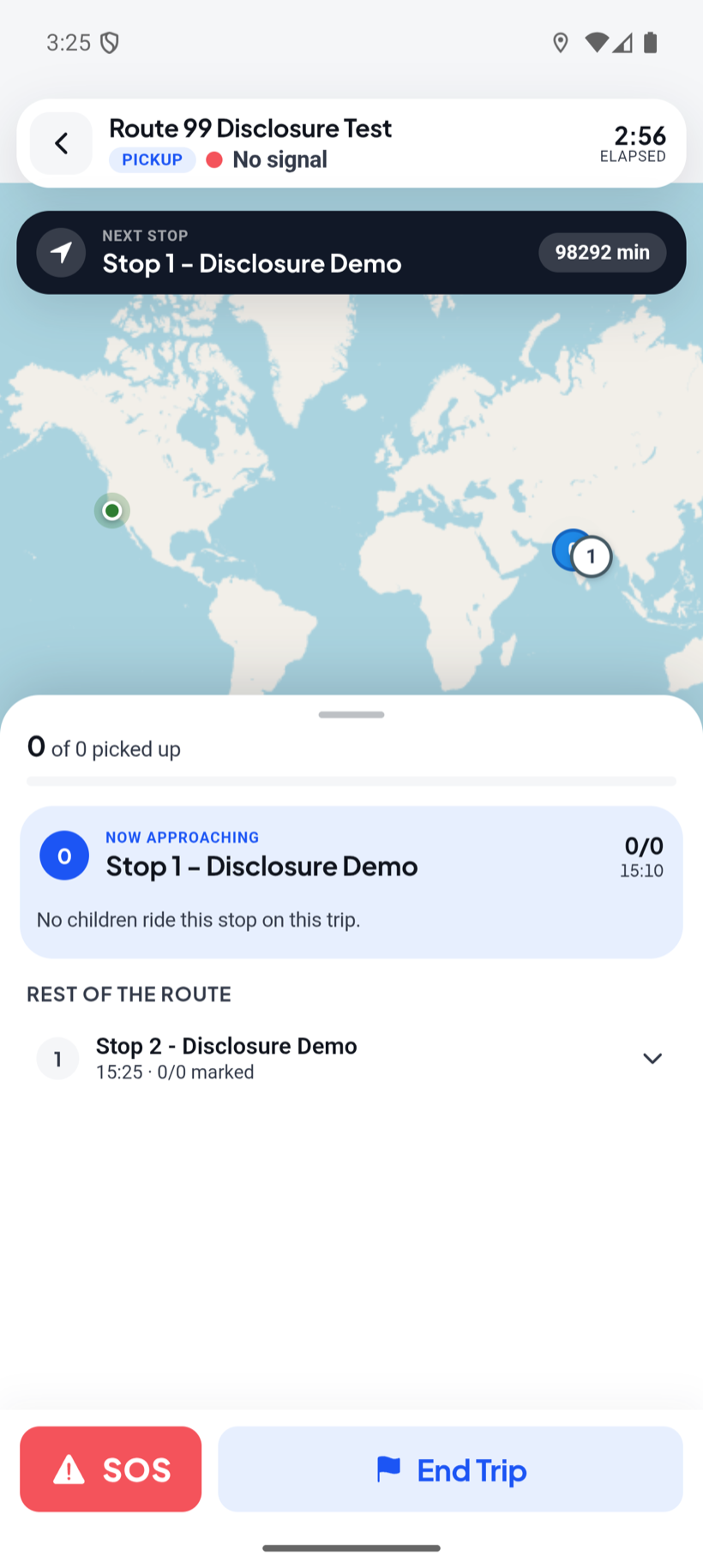
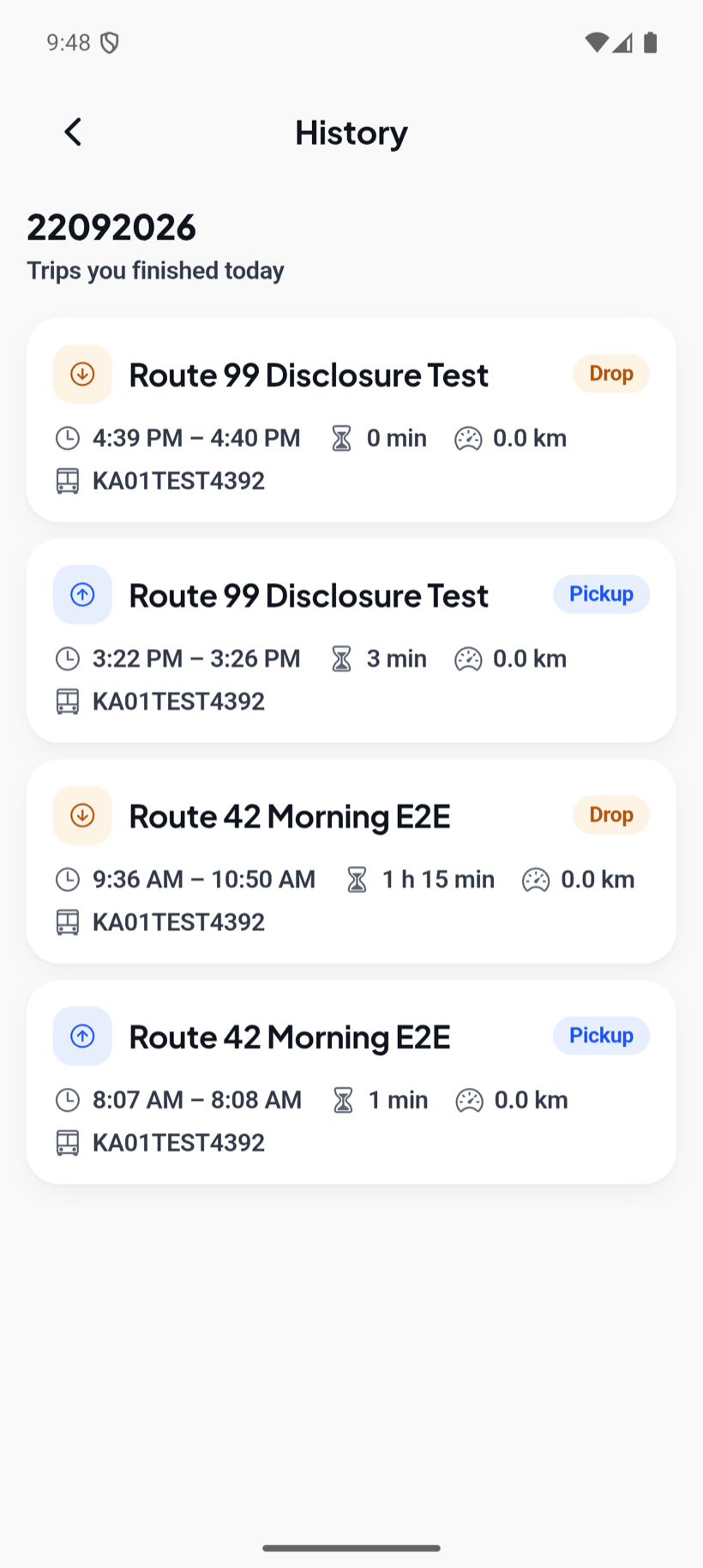
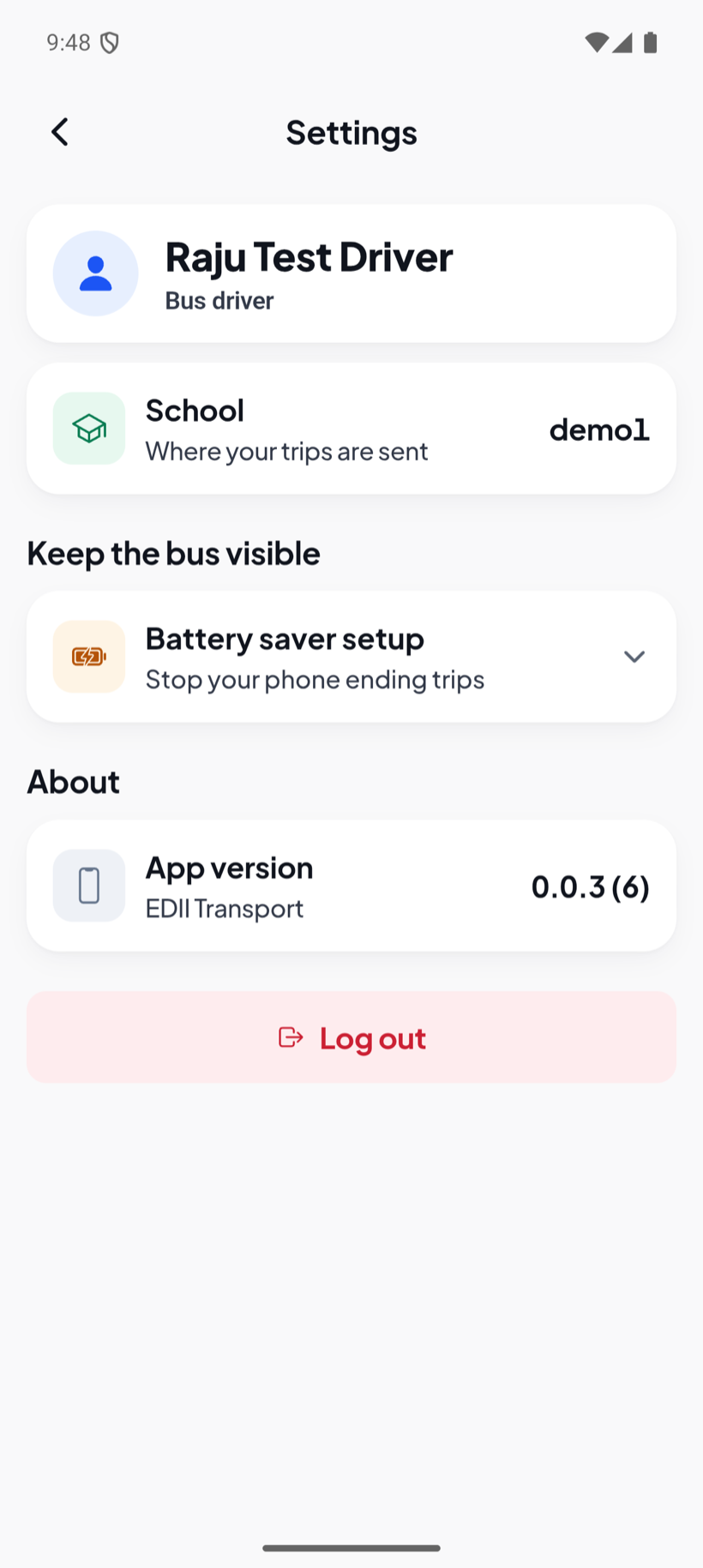
Five screens in total: sign in, the day's trips, the trip itself, today's history and settings. The trip screen is a full map with a draggable sheet over it, and SOS and End Trip sit on a fixed bar the sheet can never cover.
SOS, and it says so
“Send SOS?” — Your school will be alerted immediately with your current location. There is an optional note box. On the dashboard it lands as a red banner with the driver's name, the time, the coordinates and Show on map, and it stays there until somebody acknowledges it. An SOS with no coordinates is never faked — the app says on screen that it was not sent.
End Trip is final
“End this trip?” — Location sharing will stop. If children are still unmarked it says how many, before the driver confirms. A completed trip cannot be restarted, per route, per leg, per day, so the app makes sure the driver knows what is about to be lost. After ending, the screen shows the distance driven.
Two phones, one bus
Any driver on the route can open a running trip. The trip screen shows “Tracking from another phone”, and a Take over tracking button moves sharing to the phone in front of you. On the trips list that card reads View instead of Resume. It is a deliberate tap, not automatic magic.
Roads without signal are handled the same way, quietly. The app keeps taking positions whether or not it can reach the network, holds them on the phone — thousands of them, if it comes to that — and sends them up once the connection returns. Each catch-up upload is capped, so a long dead stretch fills back in over the next several uploads rather than all at once. The trip history ends up complete; it just arrives a little behind.
06 · For parents
Their own child's bus. Only while it is running.
Nothing new to install. The bus appears as a screen called School Bus inside the EDII parent app the school already uses.
- A live line that reads “Arriving at <stop> in about N minutes”, with how many stops away the bus is, its speed, and how long ago the position updated.
- A map marked with Your stop and the rest of the route stops. Refreshed every 15 seconds while the trip runs.
- The driver's name, and a call button — shown only if the school switches it on. It is off by default.
- Approach alerts fire on both distance (100–2000 m) and stops-away (1–5). Deliberately both: distance alone behaves badly in traffic, stop count alone behaves badly when stops are far apart.
- Six message types, six independent switches: trip started, bus approaching, bus reached stop, child boarded, child dropped, trip ended. Turn off whatever your parents find noisy.
- Between trips, the card simply says “No trip running right now.” There is no other route's bus to look at, and nothing to watch at 9 pm.
The honest bit: a child who is not assigned to a route and stop sees nothing at all — the app says so, and tells the parent to contact the office. That is the first thing to check when a parent says tracking is not working.
Two stops away · arriving in about six minutes
07 · What is collected
The driver is told first, in plain words.
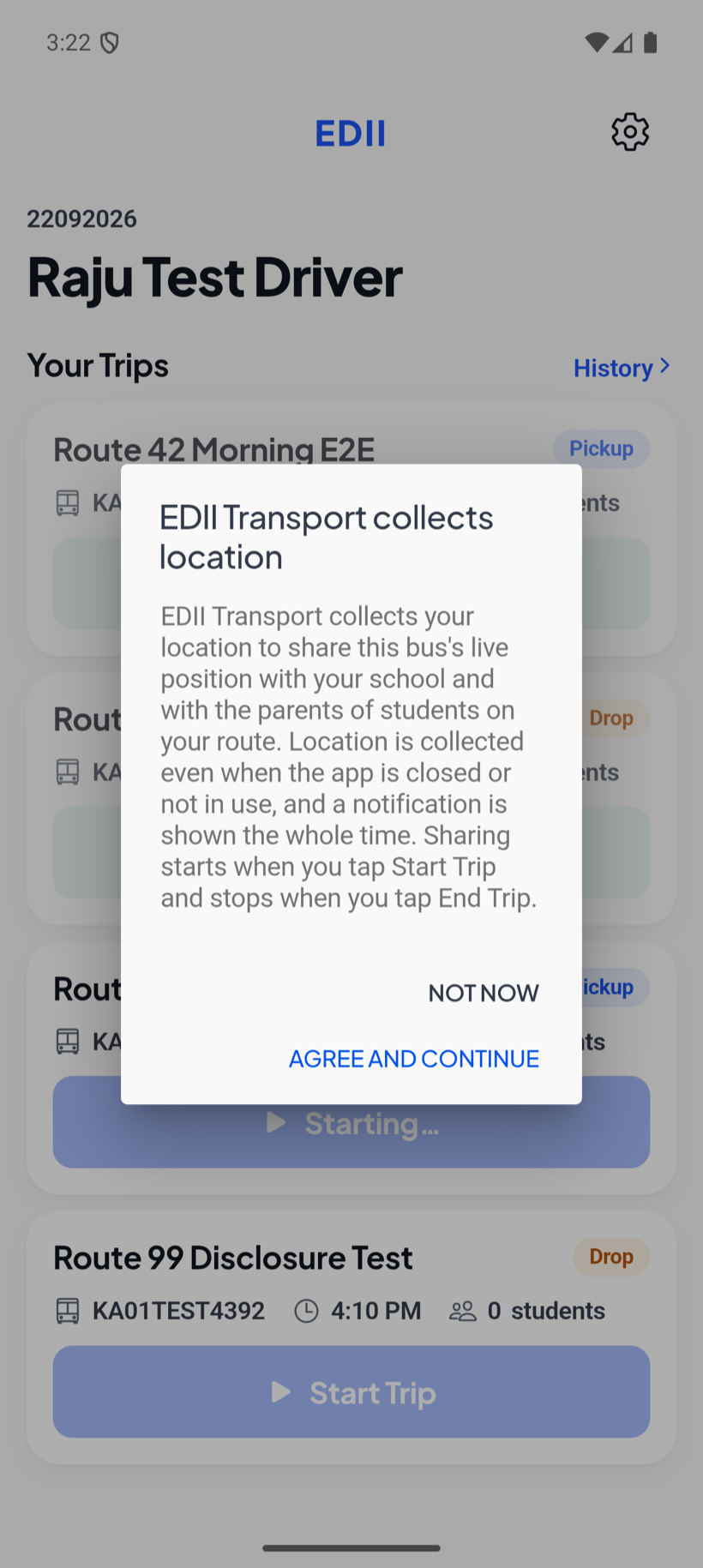
Before the phone's own permission prompt appears, the app explains itself in full — and the driver can decline.
“EDII Transport collects your location to share this bus's live position with your school and with the parents of students on your route. Location is collected even when the app is closed or not in use, and a notification is shown the whole time. Sharing starts when you tap Start Trip and stops when you tap End Trip.”
Shown in the driver app before any system permission is requested
The two buttons are Not now and Agree and continue, and the notice cannot be swiped away — a disclosure the driver can dismiss by accident has not been consented to. While a trip runs, the phone shows a permanent notification reading “Sharing bus location with your school”.
Schools worry, rightly, about being seen to track their staff. This is the answer: location is tied to a trip the driver starts and ends, never to the person, and never to the hours in between.
08 · Every screen
The Transport menu, item by item.
These are the real menu names, in the real order, inside EDII under Operations → Transport. Nothing here is a roadmap item.
Nobody has to be watching
A live trip whose phone stopped reporting looks identical to a trip going fine — the parent's map simply freezes. So a check runs every five minutes around the clock and raises No GPS signal. A second check looks for trips that should have started and have not, every ten minutes through the morning and afternoon windows.
Papers before permits lapse
RC, Insurance, PUC, Fitness and Permit per vehicle, plus each driver's licence expiry. The buckets do not overlap — a paper due in three days appears under “Expires within 7 days” and nowhere else — so a summary count means what it says.
The report only one system can produce
“These students have a seat on a bus route but no bus fee for this session. They are travelling on the bus without being charged for it.” That is computable only because the rider list and the fee ledger are the same database.
09 · Setting it up
Collect the inputs first. Then it is one sitting.
Before you open a single screen, gather: the bus list with registration, bus number and capacity; the driver list with the mobile number each driver actually carries; the routes with their stops in visiting order and pickup and drop times; which children use which stop; a phone per driver; and the vehicle document expiry dates. Collecting all of that before you start turns a two-day job into about an hour.
Run the migration
Mandatory, and a three-step wizard: Preview, Adjust, Import. Your bus fees and bus stop list stay exactly as they are. Spend your time in Adjust on driver mobile numbers — that number is the login, so a wrong one means that driver cannot sign in at all. Safe to run again.
Add the buses
Registration number, bus number and capacity. Add the RC, insurance, PUC, fitness and permit expiry dates now if you want the compliance warnings later.
Add drivers and attendants
Name, phone and licence details. Choose per driver: leave Login OTP blank for a fresh WhatsApp code each sign-in, or set a fixed code to hand a driver with a basic handset.
Finish routes and stops
Click the map to place every stop and drag the rows into pickup order. Migrated stops arrive without map locations and sit in their own band with a Set location action — those are the ones to clear.
Assign the students
Class by class: search, set Show to “Not assigned”, pick the shared route and stop, press Fill In, then fix the exceptions. Watch the direction on children who travel only one way.
Home points (optional)
Place a pickup point per child, or one point for every child sharing a stop. The driver then sees a pin per child on the trip map — which is how a relief driver knows which gate to stop at.
Turn Live Tracking on
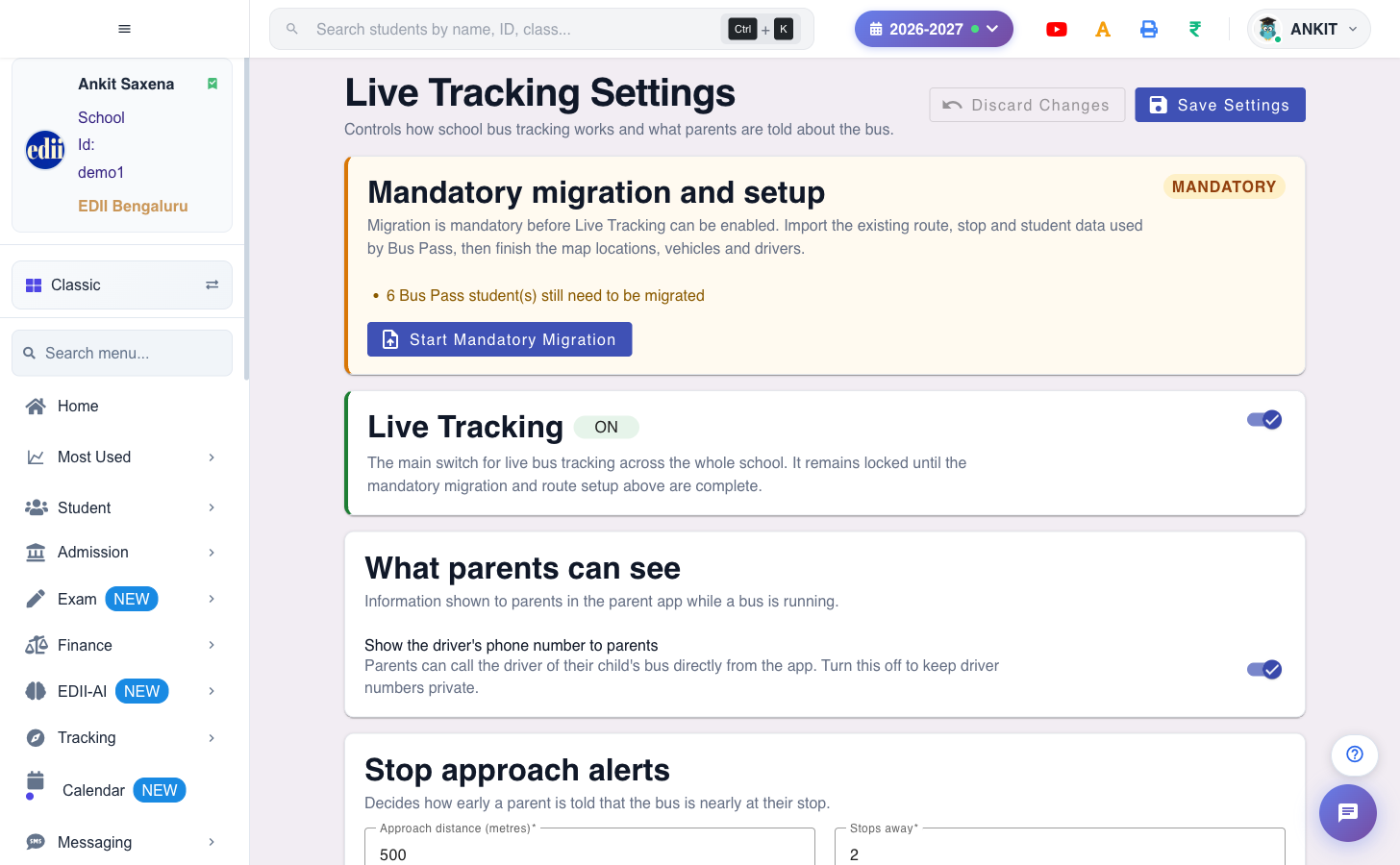
Go back to Live Tracking Settings. The card at the top lists exactly what is still missing — routes without stops, routes with no vehicle or driver, students not yet migrated. When it reads READY, switch Live Tracking on and save.
As above, the screens shown are from a demo school. Your routes, buses and children will be different.
Why the gate exists
Live Tracking cannot be switched on until migration and route setup are finished, and while it is off a driver cannot start a trip at all. That is deliberate: it stops a school running two drifting sets of route data — one in Bus Pass, one in Transport — which is a far worse problem than waiting a day.
What the setup card actually checks
Not a checklist somebody ticks. It is computed from your data and names the gap: no routes migrated, no student assignments migrated, N Bus Pass students still to migrate, N routes with stops missing map locations, N routes with no stops, N routes needing a vehicle, N routes needing a driver.
10 · Bundled into EDII
Transport is part of EDII. Not an add-on, not a second vendor, no hardware to buy.
It is not a separate product with its own login, its own student list and its own invoice. It is a group in the EDII sidebar that your school switches on. That is a structural fact, not a marketing line — here is what it actually buys you.
Your classes, your sections, your session
Student Assignments filters by the same class and section master data the rest of EDII uses, for the same session. Add a child to a class in the morning and they are there to assign to a bus in the afternoon. Nothing is typed twice, and nothing can drift.
Riders checked against bus fees
Bus Fee Reconciliation joins the children on a route against the children billed for the bus, and shows you the three ways they disagree. That report exists only because the rider list and the fee ledger sit in the same system.
Your Bus Pass data comes across
The wizard imports the routes, stops, buses, drivers and students you already have in EDII rather than asking you to build a fresh data set. Your bus fees and bus stop list are untouched.
No device is fitted to the bus, nothing is bought per vehicle, and a school can start with the phones the drivers already carry. Schools already on EDII switch Transport on from Live Tracking Settings once setup is complete.
11 · Good to know
What principals ask
Do we need GPS devices in the buses?
Is the bus tracked when there is no trip?
Does it drain the driver's battery?
Can two drivers share one bus?
A different route in the morning and the afternoon?
What if the driver forgets to end the trip?
What if the driver's phone dies mid-trip?
What about holidays and Sundays?
We already use Bus Pass. Do we start again?
Which phones does the driver need?
Is Transport an extra purchase?
For schools
Already on EDII? Then it is already yours.
We will walk your office through the migration, the routes and the first morning on the map. Bring your bus list and your drivers' phone numbers.