 EDII
Most admission software stops at collecting the form. The work a school actually dreads comes after: chasing documents, marking a pile of test papers, ranking the list by hand, and then typing every admitted child into the student records a second time. EDII Admissions carries the whole season, and it lives inside the same school operating system that runs your fees, attendance, exams and parent app.
- Enquiry
- Registration fee
- Form and documents
- Entrance test
- Psychometric test
- Counselling
- Merit list
- Offer
- Admit
Use the steps your school needs, in the order it chooses. Classes without a test stay untouched.
What your school gets
- An admission page for your school, and an Admissions tab in the EDII parent app with your school on the map
- Your own form, with your classes, seats, fees, age rules and documents
- A registration fee before the form if you want one, paid online
- Walk-ins and phone enquiries recorded in ten seconds, with follow-up reminders
- One board that shows every child's stage
- An online entrance test that marks itself, with hall tickets
- A psychometric test of your own, with a report per child
- Counselling and interview slots that families book themselves
- A merit list each family can see its own place on
- One-step Admit: the student record is made from the application
- The fee desk joined up: who has paid after admission
- A dashboard, reports to Excel or A4, and the season on your phone
1. Families find you, and apply from the phone
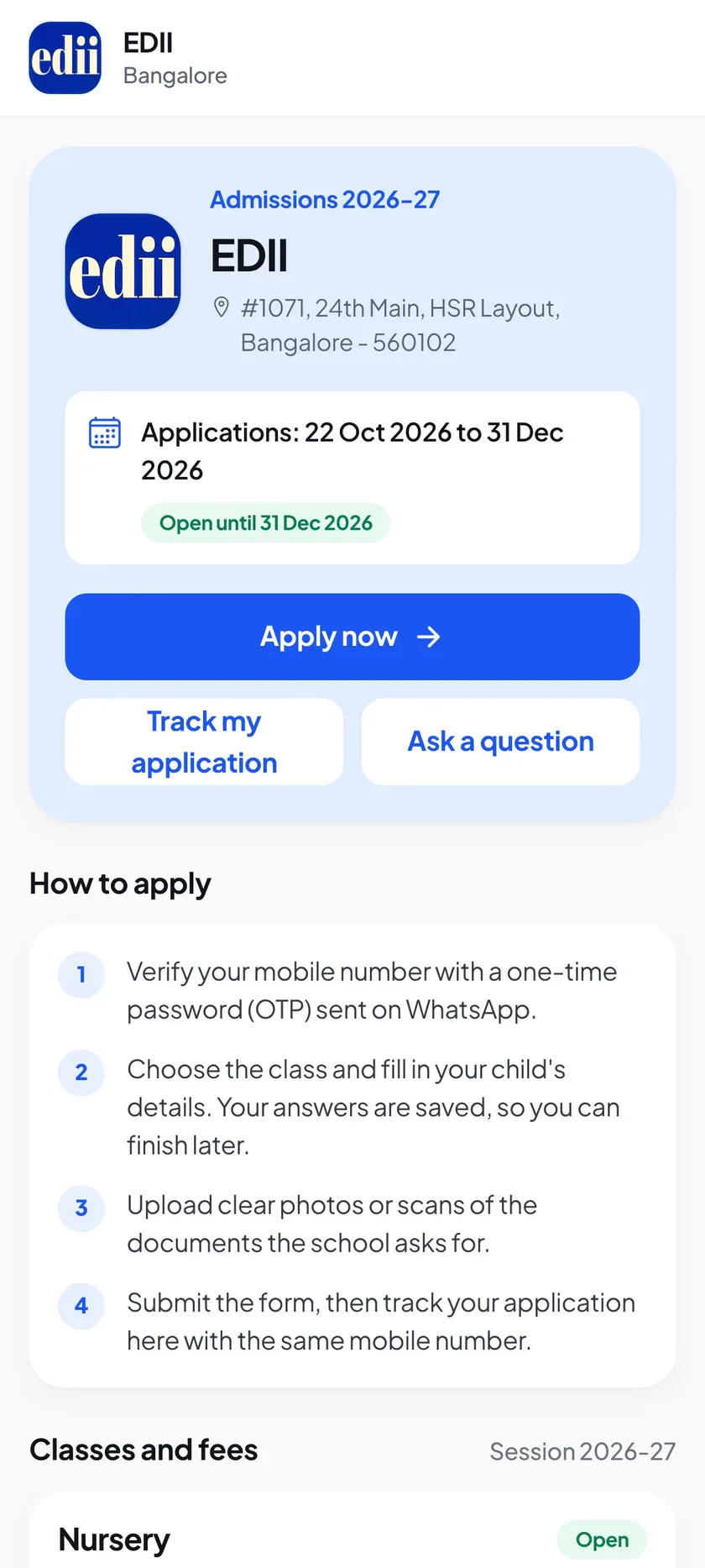
Every school on EDII gets its own admission page on admission.edii.in, ready to put on your website, your WhatsApp status and the notice board. Schools taking admissions also appear in the EDII parent app, which has its own Admissions tab: families see a list, or switch to a map with your school as a pin, tap Near me and get directions to your gate.
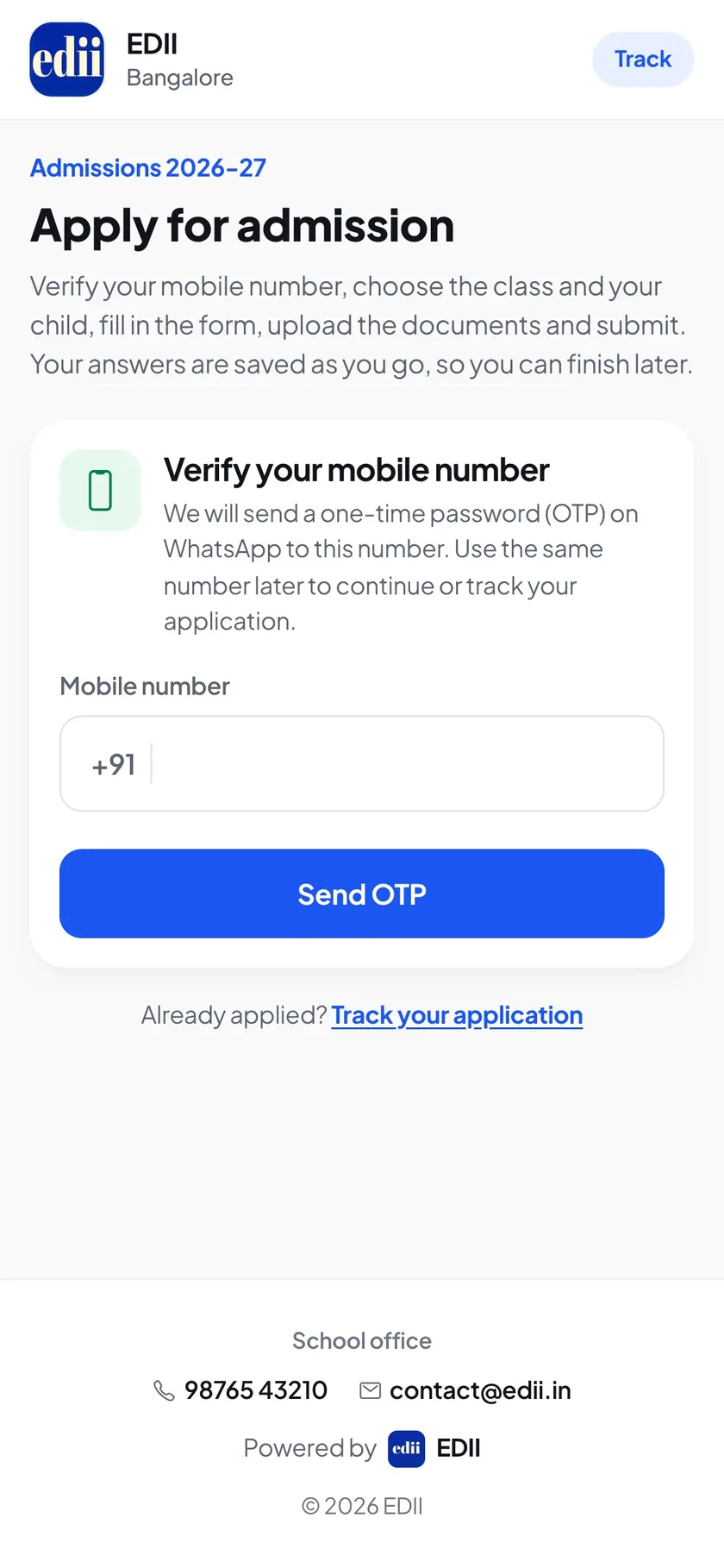
A family can look around without signing in, and is asked for a WhatsApp code only when they tap Apply. They fill your form, upload documents from the phone, pay the fee and follow every step to admission, and a Track your application link brings back anyone who returns. If the child already studies at an EDII school, the parent details fill in from that school's record.
2. Your form, your seats, your rules
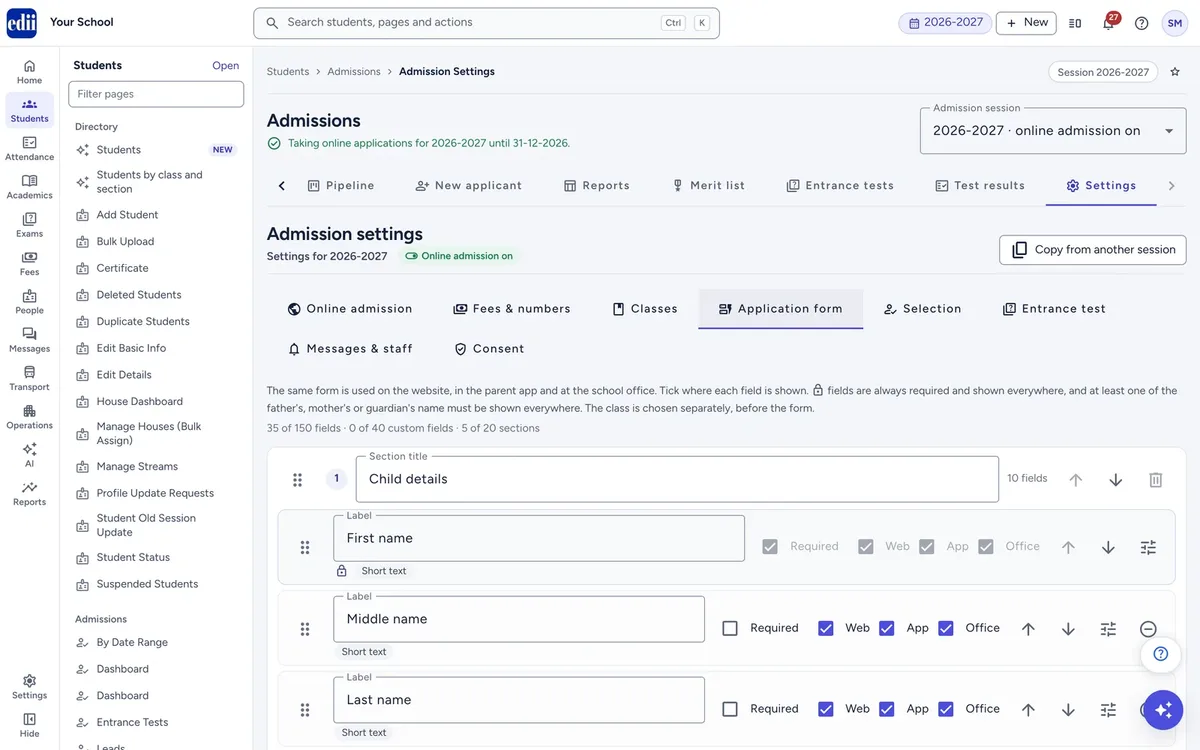
Set the season up once. Choose the dates admission is open and where families may apply: at the office, on your admission page, in the parent app, or all three. For each class, set the seats, the form fee, the admission fee, an age rule and the documents families must upload. Copy last season's settings and change only what changed. Nothing goes public until you switch online admission on.
Arrange the form yourself: reorder its sections, show or hide fields, mark them required, rename them and add your own questions. You also set how application and receipt numbers look, the consent text, the merit criteria, and which staff are told when a new application arrives.
Ask for the fee first, if you like. A registration fee, under your school's own name for it, can come before the form opens, with a refund note that families see beside Pay, on the receipt and in the message. Families pay online, and the form opens the moment they have paid.
3. Every enquiry, every child, on one board
New Applicant takes a walk-in, a phone call or a visitor in ten seconds, and turns it into a full application whenever the family is ready. In Visitors, choosing Admission as the purpose of the visit opens it straight away. If the child may already have an application you are shown the match before a second one is saved, and a former student's details fill in from their Aadhaar, enrollment number, student ID, Samagra ID or PEN.
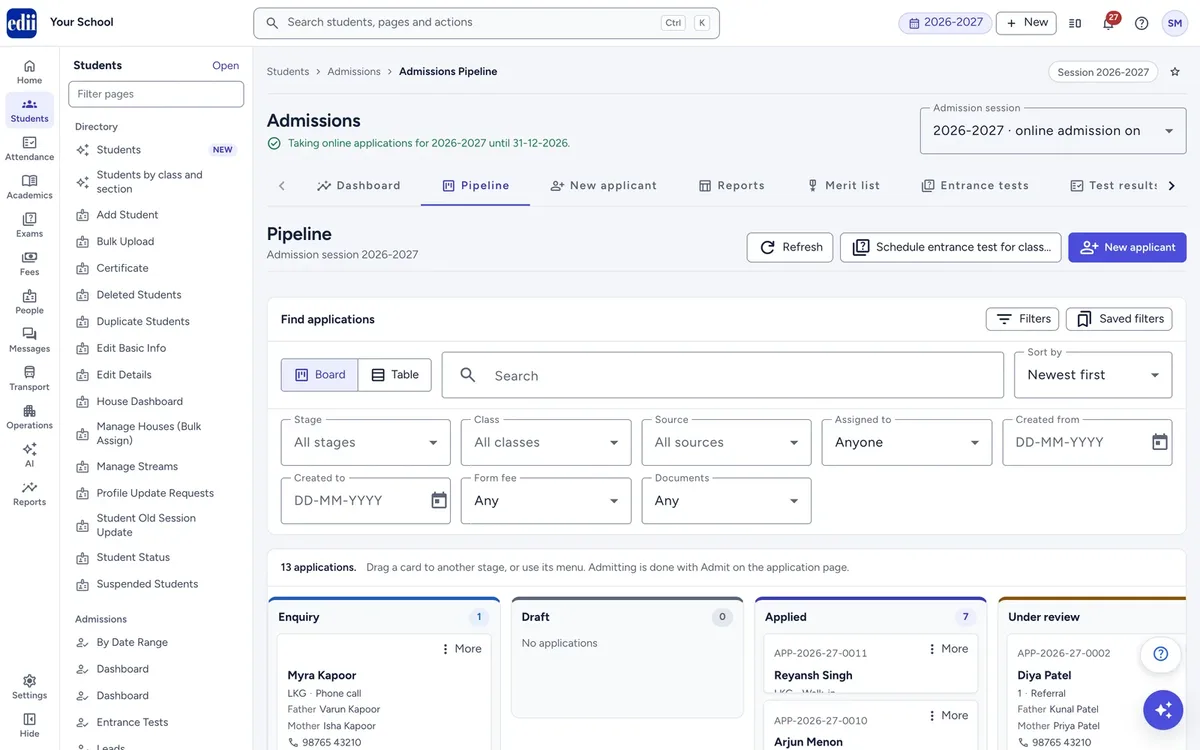
The Pipeline shows one column per stage: Enquiry, Draft, Applied, Under review, Offered, Waitlisted, Admitted, Not selected and Withdrawn. Drag a card to move it, or switch to a table with filters, search and the filters you saved. Select up to 200 applications to assign them to a colleague, move them, ask for documents or message the families in one go. Offer more seats than a class has, and the board warns you.
Everything about one child, on one page
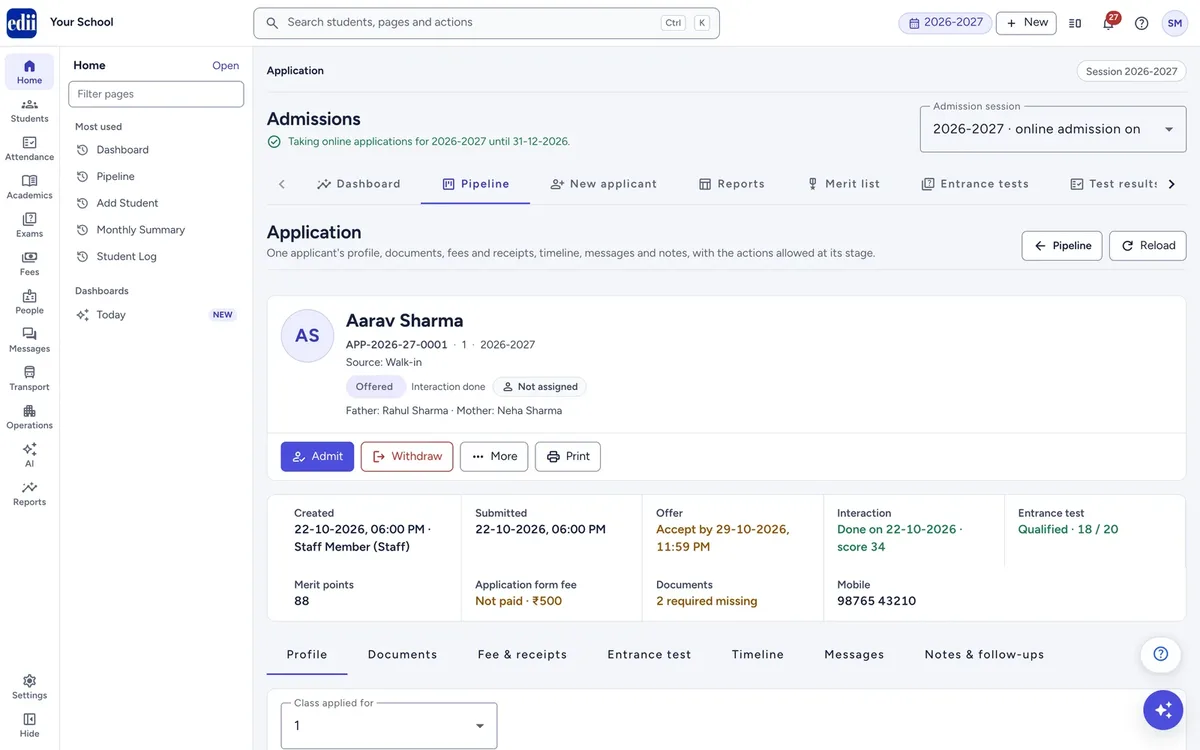
The child's details, documents (view them, mark them verified, or ask the family to upload one again), fees and receipts (cash, UPI or cheque, with a printed receipt), the full history, messages sent, notes and follow-up reminders. Offer a seat, waitlist, mark not selected or withdraw from the buttons at the top; schedule an interview or a test and record the result; print the form on A4.
Who sees what is yours to decide. Staff with Admission access see the whole section; staff with only Lead access work with enquiries alone.
4. An entrance test the office does not have to mark
Switch the test on for the classes that need one, and choose for each the paper, the window it runs in, how long it lasts, the pass marks and what parents see afterwards: Qualified or Not qualified, the marks, or nothing until you announce. One child can be excused.
Build the paper from multiple choice, true or false, fill in the blanks and match the pairs. Paste questions in, import them from your question bank, or let the AI draft them by subject, number of questions and difficulty. Every AI question arrives unreviewed: check, change or delete each one before you publish. Duplicate a paper for another class in a click.
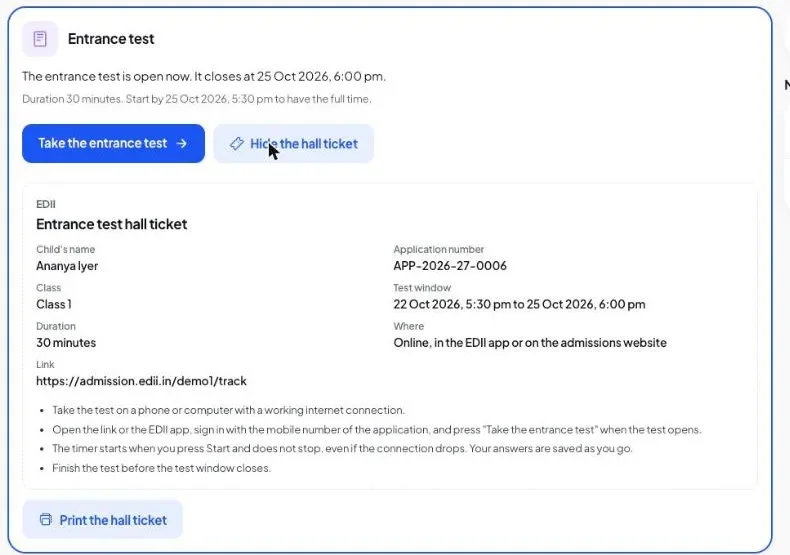
Schedule a whole class, or the children you pick. Each family gets the date, the time window, the link and a hall ticket by email and as an EDII app notification, with your how-to video if you add one. The child takes the test at home, in the parent app or on your admission page. The clock runs on our side, answers save as the child goes, and the test submits itself when time is up.
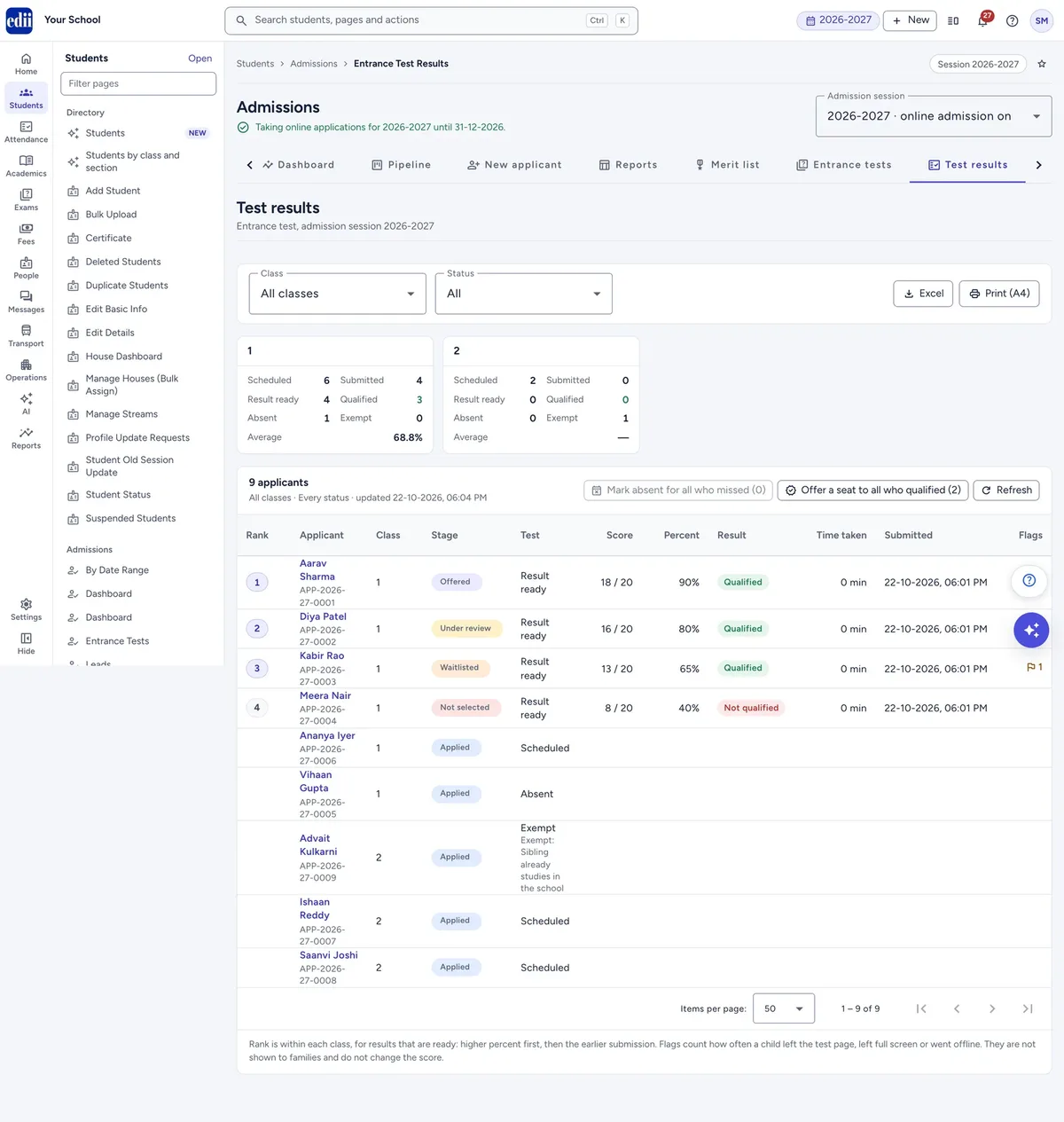
It marks itself the moment it is in. Test Results shows the marks, pass or not, time taken and rank for every class, with an Excel download and a print. Mark a child absent, or offer seats to those who qualified, from the same page.
5. Know the child, not only the marks
A psychometric test of your own. Write statements the child rates, from Never to Always for example, grouped into areas such as discipline or teamwork, with your own sentence for a low, middle and high result. Open it when you choose, for example after the entrance test; the AI can draft the statements for you to check. Results come by area, with a printable report for each child.
Counselling and interviews, without the phone diary. Set the days, the hours, the slot length, how many families per slot and which counsellors take them. Families book a counselling session or interview with the counsellor of their choice from the phone, and change it if you allow. The Counselling page shows every booking day by day: mark it done or not attended, or book and move a family's slot from its application.
6. A merit list you can stand behind
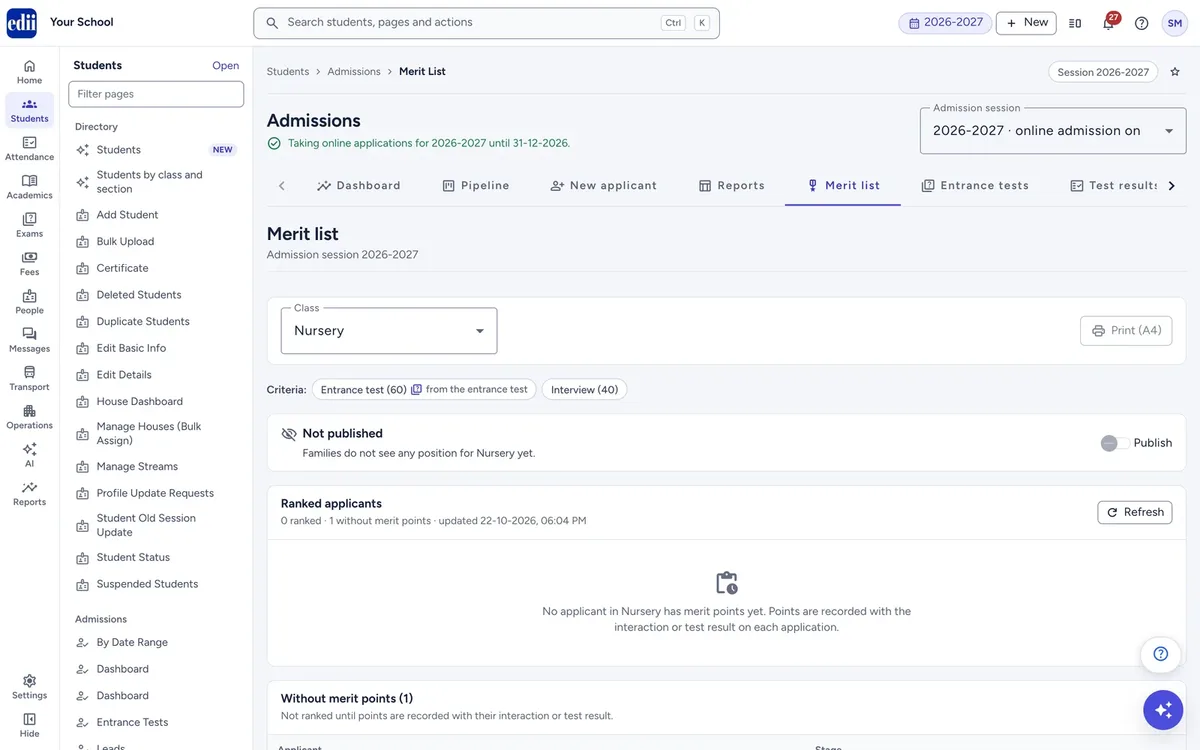
Rank each class on the entrance test score, or on the points your own criteria give. Publish the list and each family sees its own position. Points cannot be changed while a list is published, so nothing moves quietly behind it. Offer seats in order and waitlist the next, while the board keeps the seats left in each class against the offers you have made.
7. Admit in one step. Nothing typed twice.
Once a seat is offered, choose the section, check the student ID and confirm. The student is created from the application, with the details the family typed, and you get a link straight to the new profile. The student ID and admission form number are checked as you go, so no two children share one. You can even admit into next year before that session has been started: EDII offers to copy the classes and sections across.
Then the fee desk takes over, in the same login. The application's Fee & receipts tab lists the school fees paid after admission, with a Collect fees button. The Pipeline marks every admitted child as fees paid or not paid, and the Dashboard shows how many have paid and how much.
8. Families told at every step
Each stage can send its own message: documents requested, test scheduled, seat offered, waitlisted, admission confirmed, fee received. Email and EDII app notifications go out by default and cost nothing per message; WhatsApp is your choice, and a school with its own WhatsApp sender can use its own template for each message. Families who apply at the office get the same messages as those who apply online.
9. Where the season stands, at a glance
The Admissions Dashboard shows applications by stage, by class (seats against applications, offers and admissions) and by source, applications per day, the form and admission fees collected, and the follow-ups due today. Reports filter by date, stage, class and source, with the columns you choose, to Excel or printed on A4 for the management meeting.
On your phone, the EDII Admin app opens on your school's day, with this season's admissions beside today's collection and the sections not yet marked.
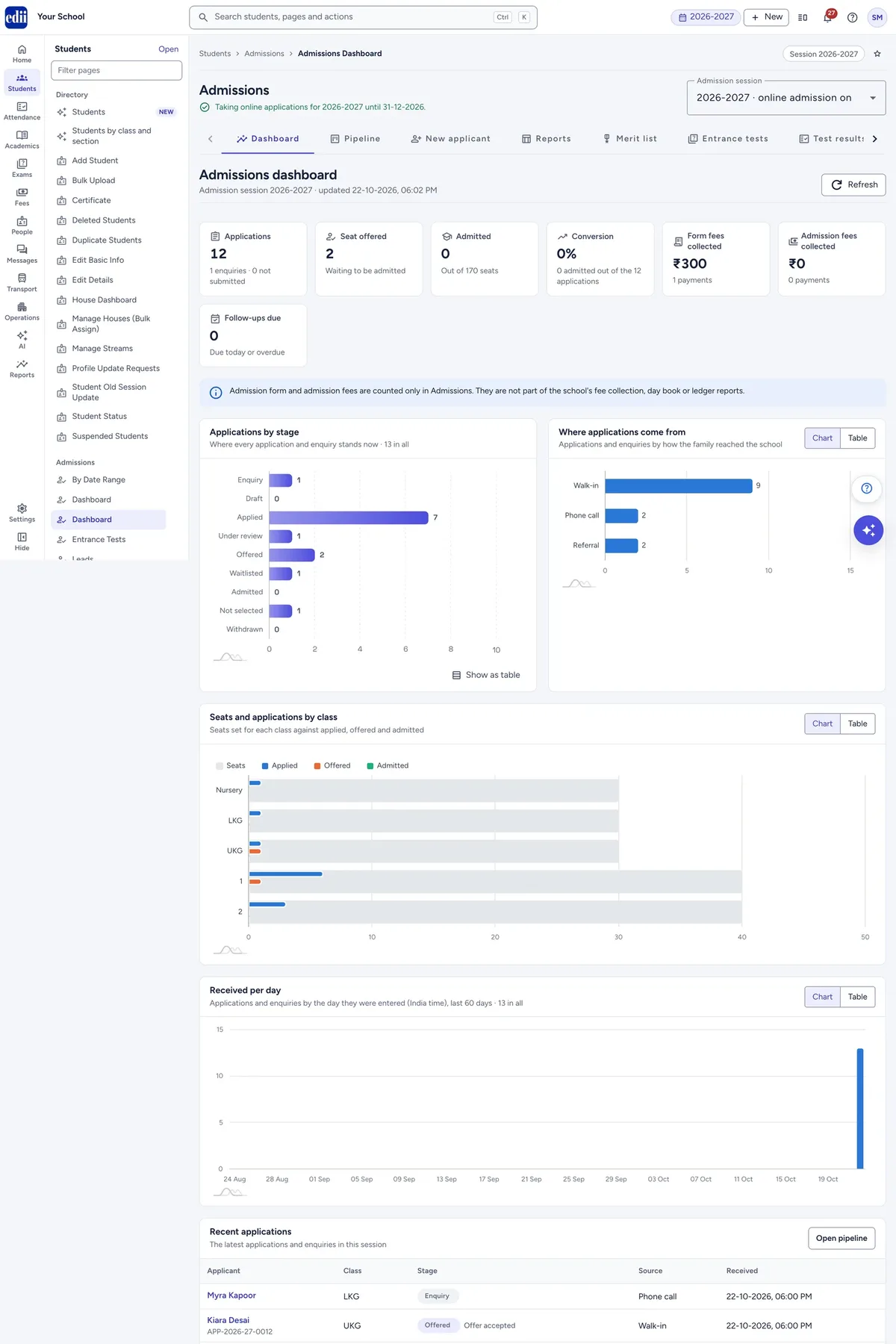
10. Your office is not left to guess
Every screen is explained in the public EDII Admissions Guide (opens in new tab), for the office and for parents, with a PDF to print. Setup, moving your old records across and training your staff are done with you, at no extra cost. And a school can start in 60 seconds (opens in new tab): create your school's ID with the school name, the branch and a mobile number.
After admission day: the rest of EDII
The child you admit in January is on the same system on the first day of school. Everything below runs in the same login, for every class.
That is not the whole list: timetable, library, certificates, visitors, inventory and alumni are in there too, 70+ modules by name.
Open admissions for 2027-28 on EDII
150+ schools run on EDII. See it in 15 minutes on your own classes and seats, or message us on WhatsApp at +91 78294 67111 (call +91 82991 31183). Setup, data migration and staff training are free.
Planning the season first? Read How to run school admissions online for 2027-28, with a checklist for November, or see EDII Admissions page by page.